

A HELPING HAND IN YOUR KITCHEN
Your shopping list, one tap away!
Put your GIMI Shopping List on your Android Home Screen so it's easy to find when you're out shopping.
Android phones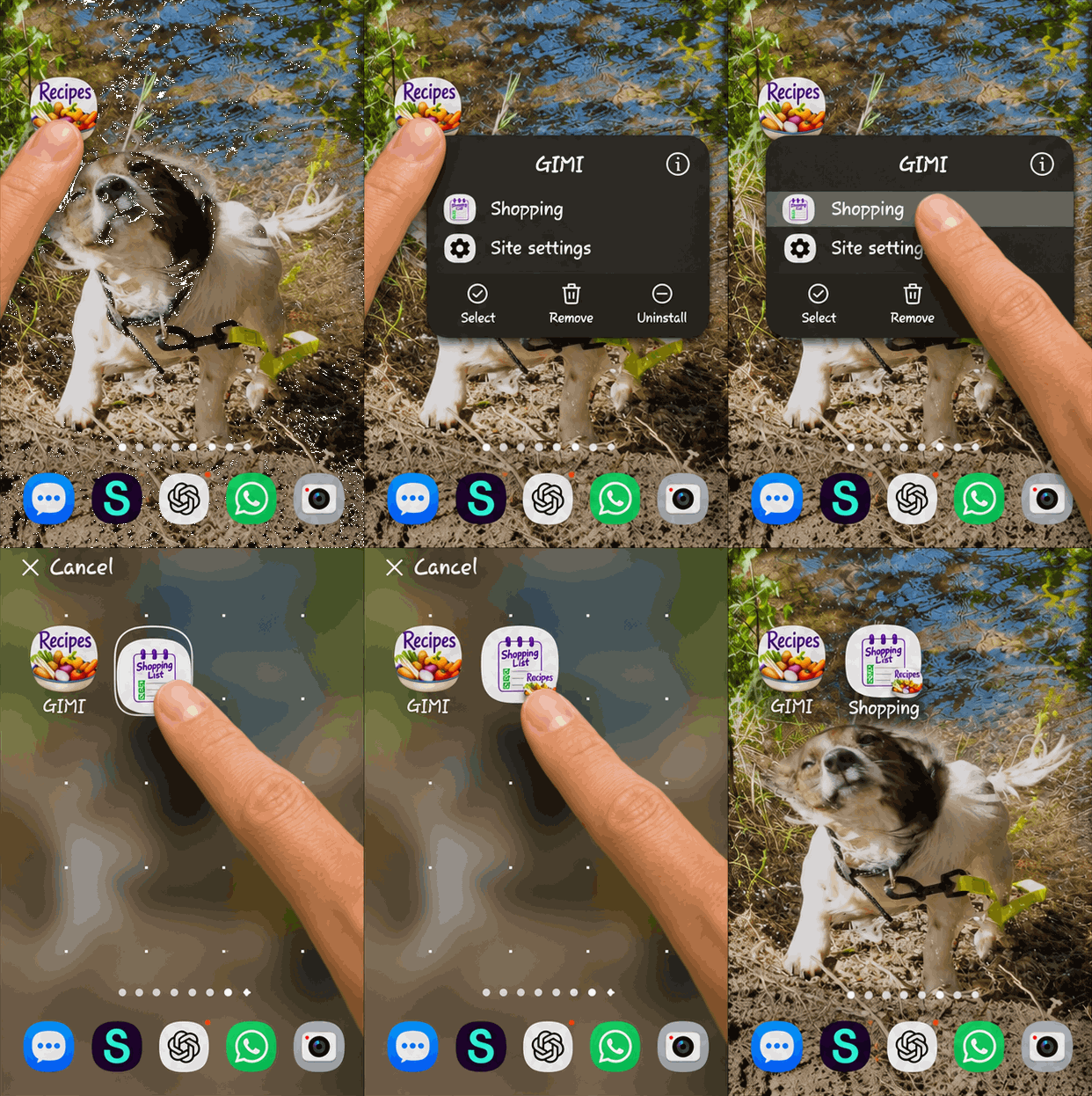
How to add your shortcut
- Find the GIMI icon on your Android Home Screen.
- Press and hold the GIMI icon until the shortcut menu appears.
- Find Shopping in the menu. Press and hold Shopping, then drag it onto the Home Screen.
- Move it where you'd like it and lift your finger to leave the shortcut there.
- Tap your new Shopping icon to open your list.
That's it! Your Shopping List is now just one tap away. 💜
Good to know: These pictures show a Samsung Android phone. The menus can look a little different on other Android phones. If you don't see a Shopping option when you hold down GIMI, the shortcut may not be available on your device or app version.
To return to GIMI, use your phone's Back button or switch back to the app.